
AI in practice
Turn a coaching transcript into a useful session summary
A step-by-step walkthrough: shape the draft, check what it says and prepare a summary your client can recognise.
A useful starting point is a task you may already do: writing up a coaching conversation. An AI note taker can produce the transcript, and an AI tool such as Claude or ChatGPT can help you turn it into a summary for your client.
The value comes from giving the tool a clear purpose, then working with it to produce an account you are happy to share. Here is a straightforward approach.
The summary workflow
Step 1: Get a transcript of the call
For a Zoom session, you could use Zoom’s transcription feature where available on your account, or an AI note taker that works with your meeting platform. Set it up before the session, explain what it will capture and confirm that the client is comfortable proceeding.
Afterwards, open the transcript and check that it is usable: are the speakers correctly identified, is anything missing, and are there obvious errors? The note taker may also produce its own summary. You can work from the transcript to create a version shaped by your own instructions.
Step 2: Bring the transcript into your AI tool
The simplest route is to copy the transcript from your note taker and paste it into your chosen AI tool, or upload an exported transcript file. Use an account and service appropriate for the client material, as explained in the data and confidentiality section.
Where your tools support it, a connector may let your AI tool retrieve the transcript directly. Some connectors use MCP, a standard for connecting AI tools to other services. This is optional: copying and pasting is enough to begin. Check which information a connection can access before enabling it.
Step 3: Tell the AI what the summary is for
A general request to “summarise this call” leaves the tool to decide what matters. Give it a purpose, an audience and a few clear instructions. Here is a short example you can adapt.
Example prompt
Create a draft for your client
Using this coaching transcript, draft a concise summary for the client, addressed to them as “you”. The purpose is to help them revisit their own thinking.
Include the main themes, insights they expressed, questions left open and any next steps they explicitly chose. Keep possibilities separate from agreed actions. Use the client’s own language where it matters.
Do not add advice, infer feelings as facts or turn my questions into the client’s conclusions. Flag unclear wording or speaker attribution for me to check.
Before drafting, ask whether there are any moments I particularly want you to attend to. Produce a draft for my review, not a final message to send.
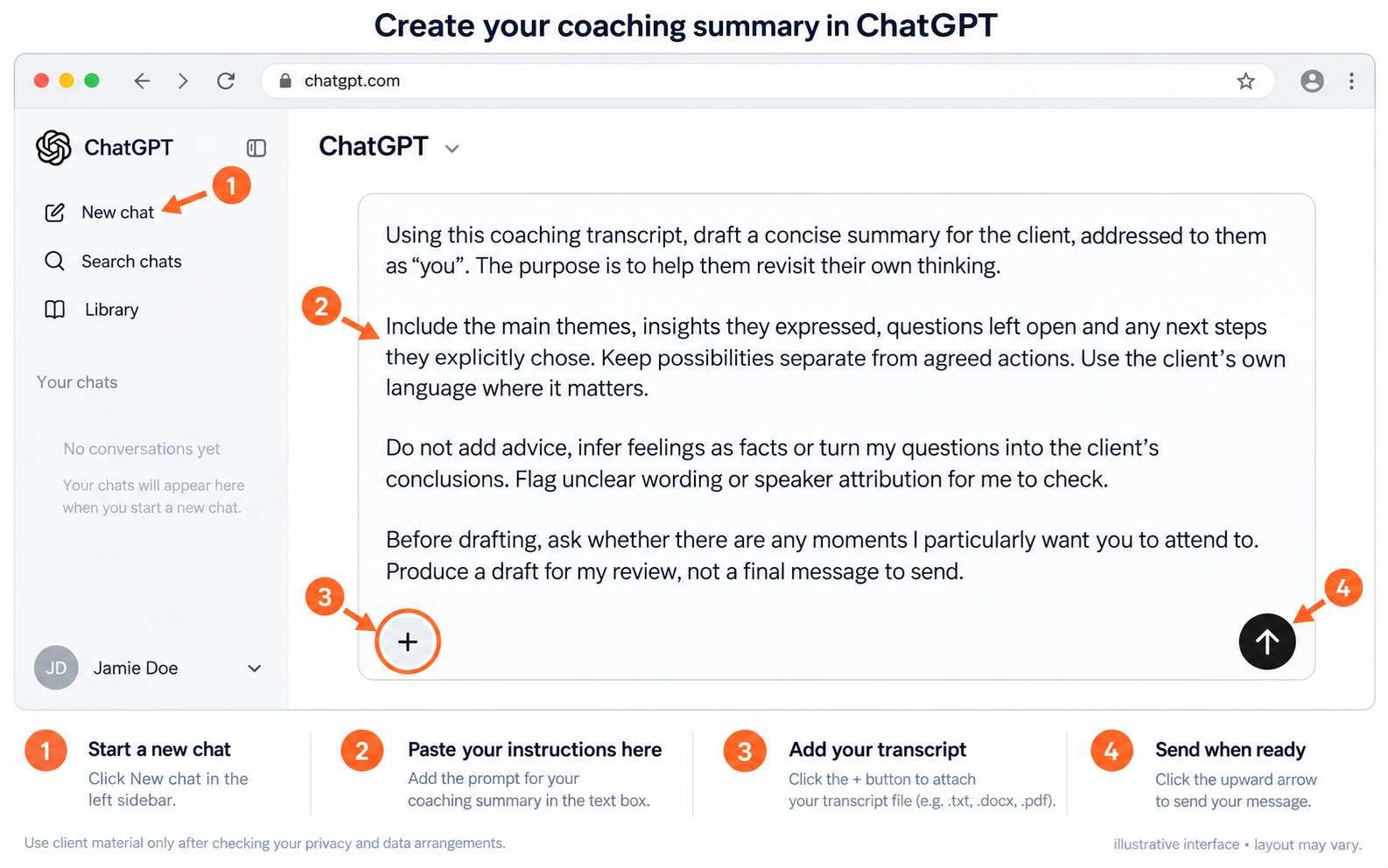
Your instructions can become more specific as you discover what is useful. You might prefer a shorter email, want more attention to a particular exchange, or ask the AI to preserve a question the client was still considering.
Step 4: Read, question and refine the draft
Compare the summary with your recollections and notes, and check the relevant transcript passages. If something in the transcript looks wrong, check the recording where available. A polished summary can still miss what mattered or make an uncertain thought sound settled.
You can talk to the AI as you revise. Point out an omission, explain what you noticed in the room or ask it to look more closely at a particular exchange. Keep your observations distinct from what the client actually said.
For example: “The draft says the client agreed to speak to their co-founder on Friday. They said they might, but had not decided. Please preserve that uncertainty and check for other places where you have turned a possibility into a commitment.”
Read the revised version too. The aim is a useful record the client can recognise and question, rather than an authoritative account of what the session meant.
Step 5: Prepare the email, check it and send
Once you are happy with the summary, ask the AI to format it as an email draft and copy it into your email application. If your AI tool supports an appropriate email connection, you may instead be able to ask it to create a draft there. Check the permissions and keep sending under your control.
Review the final wording, recipient and any attachments before sending. Invite the client to correct anything that does not reflect their experience.
The tool drafts it. You author it. As you refine your instructions, you can save them for future use and keep improving them through experience.
Feature availability depends on your account and tools. See Zoom’s transcription guidance and Claude’s explanation of MCP connectors.
What careful review looks like
Worked example · fictional dialogue and output
A possibility becomes an “agreed action”
Client: “I might speak to my co-founder before Friday. I haven’t decided. I need to think about what I actually want to say.”
AI draft: “Agreed action: speak to your co-founder before Friday.”
The draft is tidy, but it has removed the client’s uncertainty and created a commitment they did not make.
Coach’s response to the AI: “The client was considering this, not committing to it. Rewrite the passage preserving that distinction. Check the rest of the draft for other places where a tentative idea has become a decision.”
Revised wording: “You considered speaking to your co-founder before Friday. You had not decided whether to do so and wanted to think about what you wished to say.”
The coach checks the revision against the exchange and the wider session. If sharing it, they leave room for the client to correct or disagree with the account.
You can work with the AI while developing the summary: direct its attention, add context and challenge its choices. The tool drafts it. You author it. The responsibility remains yours when you share it.